Contact Us
  Help
Help Register
 Login
Login

Website Down or Painfully Slow? Here’s the Calm, Practical Fix When Your Host Says ‘Everything Looks Fine’
You did not buy web hosting because you wanted to become a part-time server administrator.
You bought it because you wanted a website that loads, works, and quietly does its job. A blog should publish. A lead form should send. A store should check out. A client portal should open. That is the deal.
When that deal breaks, the stress is immediate. Customers may be leaving. Ads may be sending paid traffic to a page that will not load. Your team may be asking what happened. And when your hosting company replies with, ‘Everything looks fine on our end,’ it can feel like you are stuck in the middle of a problem nobody owns.
That frustration is the real web hosting pain point. Not disk space. Not bandwidth numbers. Not the marketing promise on the pricing page. The real pain is this: your website is slow, intermittent, or down, and you do not know what broke, how serious it is, or who is responsible for fixing it.
The good news is that you do not need to guess. A slow or down website can usually be handled calmly if you protect the site first, capture evidence, identify the layer that is failing, and make one careful fix at a time.
| A useful way to think about the problem Downtime hurts. Confusion makes it worse. The goal is not to become deeply technical overnight. The goal is to know the right first moves so the situation stops feeling mysterious. |
Why this problem feels so stressful
A slow website is not only a technical issue. It can damage trust. Visitors rarely know whether the problem is your hosting provider, a WordPress plugin, your payment gateway, your CDN, or their own internet connection. They only know the page did not load.
For a small business, that can mean missed inquiries, abandoned carts, failed bookings, nervous clients, and lost confidence. For an agency or freelancer, it can mean uncomfortable messages from clients who expect a clear answer immediately.
There is also a psychological layer. Many website owners feel embarrassed when a site fails, even when they did nothing wrong. They start clicking everywhere: clearing cache, updating plugins, changing DNS, messaging support, installing new speed plugins, and sometimes making the problem harder to diagnose.
A better approach is slower at first and faster overall: pause, preserve evidence, and narrow the issue layer by layer.
The five common reasons websites become slow or go down
- The hosting plan no longer fits the website
Many websites start on shared hosting because it is affordable and simple. That can be perfectly fine for a small site. But as traffic grows, plugins increase, product pages multiply, images get heavier, and bots start hitting the site, the same plan may begin to struggle.
This does not always look like a clean outage. It may look like random slowness, slow WordPress admin pages, occasional 500 or 504 errors, failed checkout attempts, or a site that works fine when support checks it but fails during busy periods.
In plain English: your website may have outgrown the box it started in. - A plugin, theme, or update created a conflict
WordPress is powerful because it is flexible. That flexibility also means several moving parts have to cooperate: WordPress core, theme files, plugins, PHP versions, database queries, caching rules, and sometimes page builders.
A site can become slow or unstable after one plugin update, one theme change, one new security rule, or one failed automatic update. The timing matters. If the problem began shortly after a change, treat that change as your first suspect. - The database or backend is under pressure
Some sites look light on the outside but are heavy behind the scenes. A page builder may run too many queries. A search feature may be expensive. A plugin may call external APIs slowly. Spam comments, broken cron jobs, or bots can also add load.
One clue is whether the WordPress dashboard is slow too. If both the public site and admin area are sluggish, the problem is often deeper than image compression. It may involve PHP workers, database load, plugin behavior, or hosting resource limits. - The CDN, DNS, or security layer cannot reach the origin
Tools like Cloudflare can improve speed and protection, but they do not replace a healthy origin server. If the CDN cannot reach your hosting server, visitors may see timeout errors even though the CDN itself is working.
For example, Cloudflare’s own documentation explains that a 522 error means Cloudflare timed out while trying to contact the origin server. That may happen because the origin server is overloaded, offline, blocking Cloudflare IPs, misconfigured, or dropping packets. That distinction matters because the fix is not always inside WordPress. - Support is responding, but not diagnosing
Fast support is helpful. Accurate support is better. The most frustrating hosting experience is not simply waiting. It is receiving vague replies that do not explain what happened.
A useful support response should tell you what was checked: server load, memory, CPU, PHP worker usage, MySQL errors, web server logs, firewall blocks, DNS/CDN behavior, and whether other accounts on the same server were affected.
If support cannot provide that kind of detail during repeated incidents, you may not have a technology problem only. You may have a support-process problem.
Worth knowing
Google says persistent 5xx server errors can cause crawling to slow down and, if they continue, can affect indexed URLs. That does not mean one short outage will destroy your SEO. It does mean reliability is part of your search and business foundation, not just a technical preference.
What to do in the first 60 minutes
When a site is slow or down, the first hour is not about heroics. It is about avoiding damage and gathering enough evidence to make the next decision safely.
Step 1: Stop changing things randomly
Do not update five plugins, switch themes, purge every cache, change DNS, and install a new optimization plugin in the same panic session. That creates too many variables. If the site comes back, nobody knows why. If it gets worse, nobody knows what caused the damage.
Your first goal is to freeze the situation long enough to understand it.
Step 2: Take a backup or snapshot
Before making changes, create a fresh backup of the files and database, or take a server snapshot if your provider supports it. A backup is not glamorous, but it gives you a rollback point.
If you already have backup software, make sure the latest backup is recent and restorable. A backup you have never tested is better than nothing, but not by much.
Step 3: Capture evidence while the problem is happening
Intermittent issues are hard to solve after they disappear. Capture the failure while it is visible. Save the exact time, affected URL, error message, screenshot, device, browser, and location. If you use Cloudflare, save the error code and Ray ID.
This turns ‘my site is sometimes slow’ into a support ticket that can actually be investigated.
Quick evidence checklist
| What to capture | Why it matters | Example |
| Time and timezone | Lets support match your report with server logs | 10:14 AM EST |
| Exact URL | Shows whether one page or the whole site is affected | /checkout/ or /wp-admin/ |
| Error code | Points to the failing layer | 500, 503, 504, 522 |
| Recent changes | Identifies likely triggers | Plugin update, theme edit, DNS change |
| Screenshot or video | Prevents the “looks fine now” problem | Browser error, slow dashboard, timeout |
Step 4: Ask three simple questions
You do not need to understand every server log to narrow the problem. Start with these three questions:
- Is the public site slow, the admin area slow, or both?
- Did anything change in the last 24 to 48 hours?
- Is the problem happening for everyone, or only some visitors or regions?
If only one page is broken, the problem may be local to that page, form, plugin, or template. If everything is slow, including wp-admin, suspect hosting resources, database pressure, backend plugin behavior, or a larger service incident.
Step 5: Roll back the most likely trigger
If the issue started after a plugin update, theme change, or deployment, roll back that change first. WordPress also has Recovery Mode for certain fatal errors, and plugins can often be disabled from the dashboard or by renaming plugin folders through file access when the dashboard is unavailable.
Do one rollback, then test. Do not make ten changes and hope one of them works.
Step 6: Escalate to support with specifics
A vague support ticket invites a vague answer. A strong ticket gives support a timeline, symptoms, and the checks you want performed.
| Support ticket template Since [time and timezone], [URL] and [wp-admin or affected area] have intermittently returned [error code] or loaded very slowly. No changes were made today / The last change was [plugin/theme/DNS/update]. Please check CPU, memory, PHP worker limits, MySQL errors, web server logs, firewall blocks, blocked Cloudflare IPs, and whether this server had a load spike or provider-wide incident during that window. |
How to tell whether the problem is hosting or the website
| Symptom | More likely cause | Next move |
| Site and wp-admin are both slow | Hosting resources, database pressure, heavy plugins, bot traffic | Ask host for resource and log data; check recent plugin changes |
| Only one page is slow | Page builder, images, form, script, external API | Test that page, disable page-specific plugins, check console and network requests |
| Problem began after an update | Plugin/theme conflict or PHP compatibility issue | Roll back or disable the last changed component |
| Cloudflare 522 or origin timeout | CDN cannot reach the hosting server | Check origin server, firewall rules, Cloudflare IP allowlist, server load |
| Emails/forms fail during migration | DNS, MX, SPF/DKIM/DMARC, mail routing | Audit email records before any DNS cutover |
| Support says it is fine but users disagree | Intermittent incident or monitoring gap | Use uptime monitoring and screenshots with timestamps |
How to prevent the same problem from coming back
Fixing the current incident matters. Preventing the next one matters more. The goal is to move from panic troubleshooting to a calm operating system for your website.
- Add independent uptime monitoring
Do not let customers become your monitoring system. Use a tool such as UptimeRobot, Better Stack, StatusCake, or another monitoring service to check your website from outside your hosting account.
Good monitoring tells you when the outage started, how long it lasted, how often it repeats, and whether the pattern is getting worse. That evidence is useful for support, migrations, SLA discussions, and your own peace of mind. - Keep backups you can actually restore
A backup strategy has three parts: automatic backups, offsite storage, and restore testing. Many website owners have the first part and forget the other two.
For WordPress, tools such as UpdraftPlus and Duplicator can help with backups and migrations. Your host may also provide server-side backups. The safest setup is usually more than one backup source, especially for revenue-generating sites. - Use staging before updates
Treat website updates like deployments, not errands. A staging site lets you test plugin updates, theme changes, PHP version changes, checkout flows, forms, and login pages before the public site is touched.
If your site makes money, collects leads, or serves clients, staging is not overkill. It is basic risk control. - Build a monthly performance baseline
Once a month, check Google PageSpeed Insights and Search Console. Do not obsess over every score, but watch for trends. Are important pages getting slower? Are Core Web Vitals declining? Are crawl errors increasing? Is one template dragging down the rest of the site?
A small monthly check can catch gradual decline before it becomes an emergency. - Use caching and a CDN, but do not hide a weak origin
Caching and CDN tools can make a good site faster and more resilient. They can reduce server load, serve static files from locations closer to visitors, and provide baseline protection against some unwanted traffic.
But caching is not a cure for every hosting problem. If the origin server is overloaded or misconfigured, a CDN may simply give you a different error message. Improve the foundation first; then use caching and CDN as force multipliers. - Choose hosting based on risk, not only price
Cheap hosting is not bad by default. It is bad when the plan does not match the business risk. A brochure site, hobby blog, local landing page, WooCommerce store, membership site, and agency-managed client site do not all need the same hosting environment.
Ask yourself: if this site is down for two hours, what happens? If the answer is lost revenue, angry clients, failed orders, or damaged trust, then support quality and reliability matter more than saving a few dollars per month.
| The calm operating model Monitor the site. Back it up. Test updates on staging. Track performance. Keep DNS and email records documented. Escalate with evidence. Move hosts before repeated incidents become normal. |
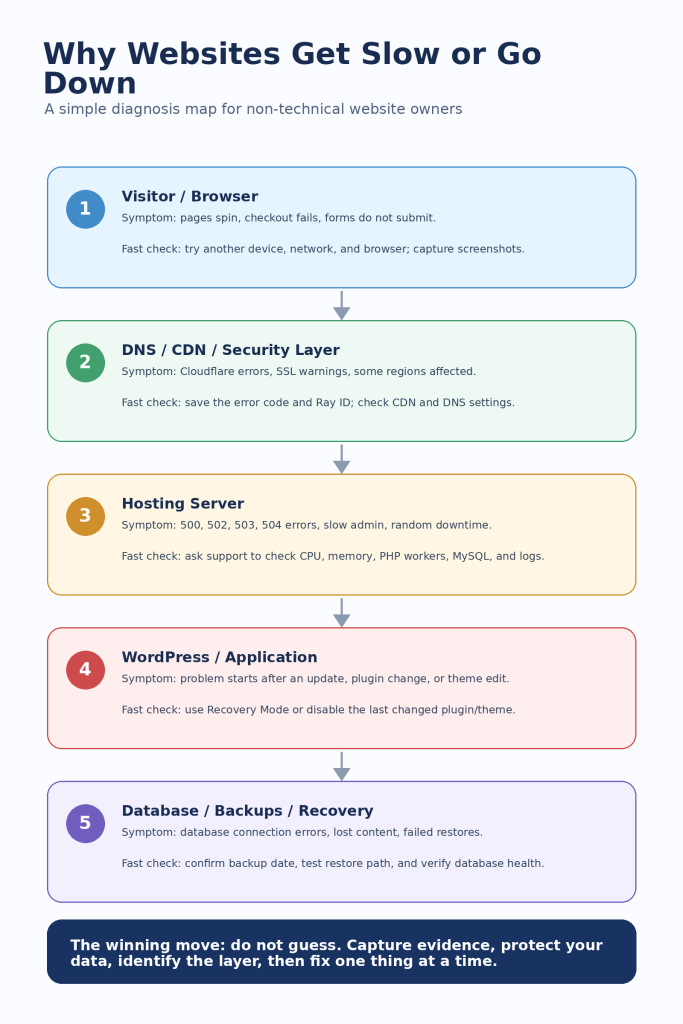
Infographic: the simple diagnosis map
When it is time to change hosting providers
Not every outage means you need a new host. Even good providers have incidents. The real question is whether problems are rare, explained, and resolved – or repeated, vague, and normalized.
Consider moving if you see these patterns:
- The same slowness or downtime keeps returning.
- Support gives generic replies without log-based explanations.
- Your site frequently hits resource limits despite reasonable optimization.
- The provider blames WordPress but cannot show what specifically is causing the load.
- Incidents happen during important campaigns, launches, or sales periods.
- You are afraid to update, publish, or run ads because the site feels fragile.
A good hosting provider does not need to be perfect. But they should be transparent, responsive, and able to explain what happened in plain language.
A safe migration plan that avoids chaos
Many website owners stay with poor hosting because they are afraid migration will break the site or email. That fear is understandable. The answer is not to avoid migration forever; it is to migrate in a controlled way.
| Phase | Timing | What happens |
| Preparation | Day 1 | Full backup, hosting inventory, DNS records, email records, CDN access, and new hosting plan selected |
| Staging | Day 2-3 | Clone the site, test admin speed, forms, checkout, login, search, plugins, and mobile pages |
| Email protection | Before cutover | Confirm MX records, SPF, DKIM, DMARC, mailboxes, forwarders, and transactional email settings |
| Cutover | Low-traffic window | Point DNS only after testing, then keep the old host active briefly as a safety net |
| Validation | Next 24-48 hours | Monitor uptime, test forms and orders, check logs, re-run speed tests, and watch Search Console |
The key is to separate website migration from email confusion. Many migrations go wrong not because moving files is impossible, but because DNS, mail, SSL, and cache layers were not documented before the move.
Recommended tools without the noise
You do not need a giant tool stack. You need a few tools that answer specific questions.
| Need | Useful tools | What they help you know |
| Uptime alerts | UptimeRobot, Better Stack, StatusCake | When the site went down, and how often it repeats |
| Performance baseline | PageSpeed Insights, Google Search Console | Whether real users and Google are seeing speed problems |
| Backups and migration | UpdraftPlus, Duplicator, host snapshots | How to roll back safely or move without starting from zero |
| WordPress diagnosis | Query Monitor, WordPress debug logs | Which plugin, query, request, or error may be causing trouble |
| CDN/security layer | Cloudflare or similar CDN/WAF | Whether the edge is working and whether it can reach your origin |
FAQ: quick answers for stressed website owners
Is one short outage bad for SEO?
Usually, one brief outage is not a disaster. Repeated or persistent server errors are different. Google’s documentation explains that ongoing 5xx errors can slow crawling and may eventually affect indexed pages. The practical lesson is simple: fix recurring reliability issues before they become a pattern.
Should I install another speed plugin?
Not as your first move. Speed plugins can help, but installing one during an outage may add another variable. First identify whether the problem is hosting resources, WordPress conflicts, database load, CDN/origin communication, or a recent change.
Is shared hosting always bad?
No. Shared hosting can be fine for small, low-risk sites. It becomes a problem when the site needs more predictable resources, better support, or stronger isolation than the plan can provide.
What should I ask support for?
Ask for specifics: server load, CPU, memory, PHP worker usage, MySQL errors, web server logs, firewall blocks, DNS/CDN behavior, and whether other accounts or servers were affected. A good provider should be able to explain what they checked.
What is the safest way to move hosts?
Back up first, clone to staging, test the site thoroughly, document DNS and email records, cut over during a low-traffic window, and monitor for 24 to 48 hours. Do not cancel the old hosting immediately after migration.
Final thought
Your website should not feel like a fragile machine that might break every time you publish a post, run an ad, or update a plugin.
You should not need to become a server administrator just to keep your business online.
The right operating model – monitoring, backups, staging, clear support escalation, and hosting that matches your actual risk – turns website problems from panic events into manageable incidents.
And when something does go wrong, you will not be stuck guessing. You will know what to check, what to ask, what to protect, and when it is time to move.
That is what a good hosting setup should give you: not just server space, but confidence.
References and useful links
• Google Search Central – HTTP status codes and crawling
• Google Search Central – Core Web Vitals and Search results
• web.dev – Optimize Core Web Vitals for business decision makers
• Cloudflare Docs – Error 522 origin connection timeout
• WordPress Developer Resources – Common WordPress errors
• WordPress Developer Resources – Debugging in WordPress
• Learn WordPress – Troubleshooting plugin and theme conflicts
• OVHcloud – Managed WordPress hosting vs shared hosting
• Liquid Web – Web hosting pain points study
• Better Stack uptime monitoring
• WordPress plugin – UpdraftPlus
• WordPress plugin – Duplicator
• WordPress plugin – Query Monitor
Appendix: emergency site-down checklist
☐ Stop making random changes.
☐ Take a backup or snapshot first.
☐ Record exact time, timezone, URL, and error code.
☐ Save screenshots or a short screen recording.
☐ Check whether the public site, admin area, or both are affected.
☐ Review changes made in the last 24 to 48 hours.
☐ Roll back the most likely trigger one change at a time.
☐ Open a support ticket with evidence and specific checks requested.
☐ Decide whether this is a one-time incident or a migration warning sign.